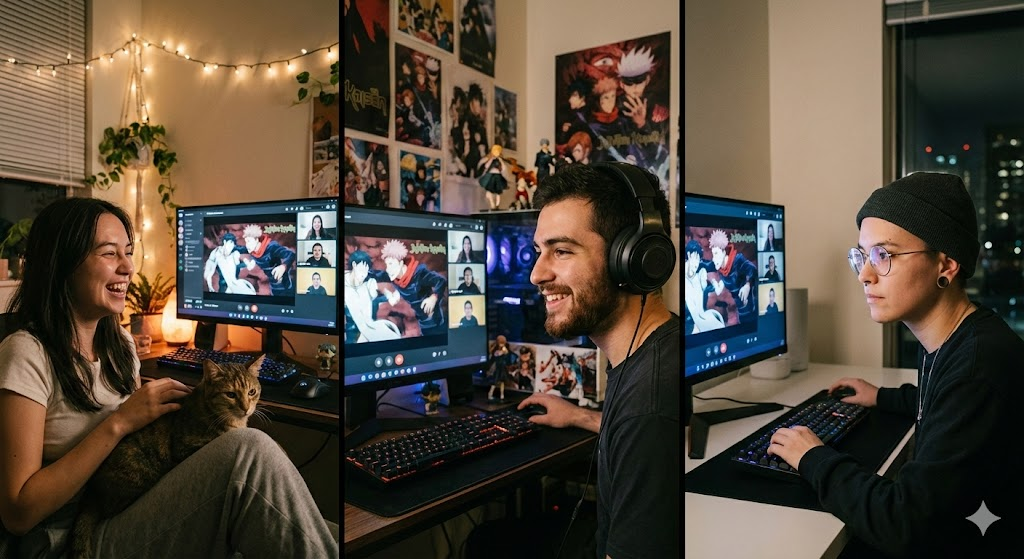
Streaming Crunchyroll through Discord’s screen sharing turns solo viewing into shared watch parties, letting you react to plot twists and discuss episodes in real time, no matter where everyone is located. But how?
The challenge? Digital rights management protections, black screen issues, and audio problems can derail your anime night. This guide covers everything needed to successfully stream Crunchyroll on Discord, from basic setup to solving the most common technical headaches.
What Do You Need Before Streaming Crunchyroll?
A Crunchyroll account forms the foundation. While free ad-supported content works, a premium subscription ($11.99/month) eliminates ad interruptions that disrupt viewing experiences for everyone watching.
Discord works through the desktop application (recommended) or web browser. The desktop app provides better performance and more reliable audio sharing, particularly on Windows and macOS. Mobile Discord supports screen sharing but with significant limitations, lower quality and reduced controls make it unsuitable for hosting streams.
Internet connection quality matters most for hosts. Upload speeds of at least 5 Mbps support 720p streaming at 30fps. For smoother streams, 10 Mbps or faster is preferable. Modern browsers—Chrome, Edge, or Firefox—handle Crunchyroll playback, though each manages Discord’s screen capture differently.
How to Stream Crunchyroll on Discord?
Open Crunchyroll in your browser first. Log in and navigate to your anime, but don’t press play yet. Having everything ready before starting prevents viewers from watching menu browsing.
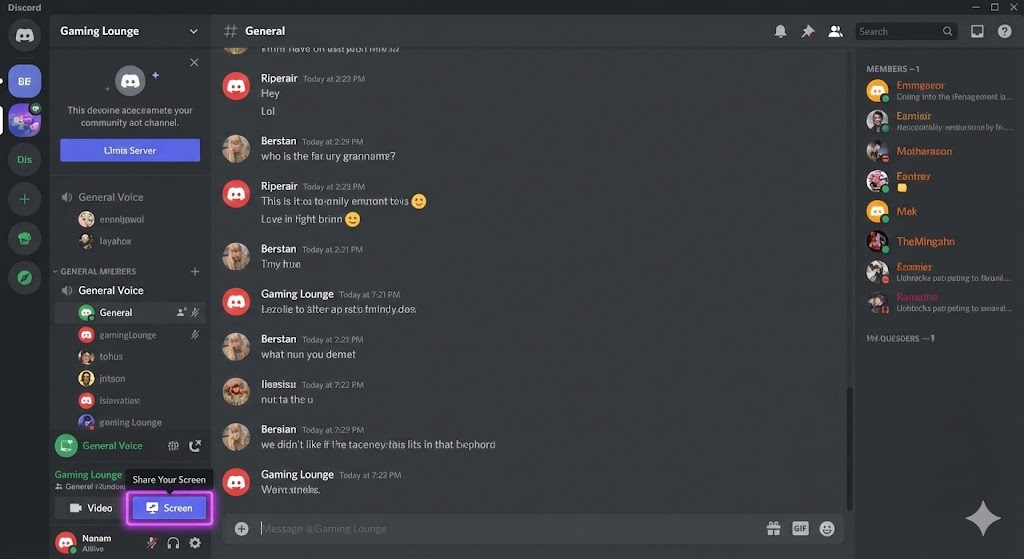
Launch Discord and join your voice channel. Click the screen share icon at the bottom, it resembles a monitor with an arrow. Discord presents two sharing choices: entire screen or specific application window. Select “Applications” and choose your web browser for best results. This shares only the browser window, keeping your desktop and notifications private.
After selecting what to share, configure quality settings. Free users stream up to 720p at 30fps. Discord Nitro subscribers ($9.99/month) unlock 1080p at 60fps, though standard 720p provides perfectly watchable anime quality while reducing bandwidth requirements.
Click “Go Live” to begin broadcasting. Return to your Crunchyroll tab and press play. Audio transmits automatically if correct sharing options were selected. Monitor Discord chat for viewer feedback about any issues before getting deep into episodes.
Why Does the Black Screen Issue Happen?
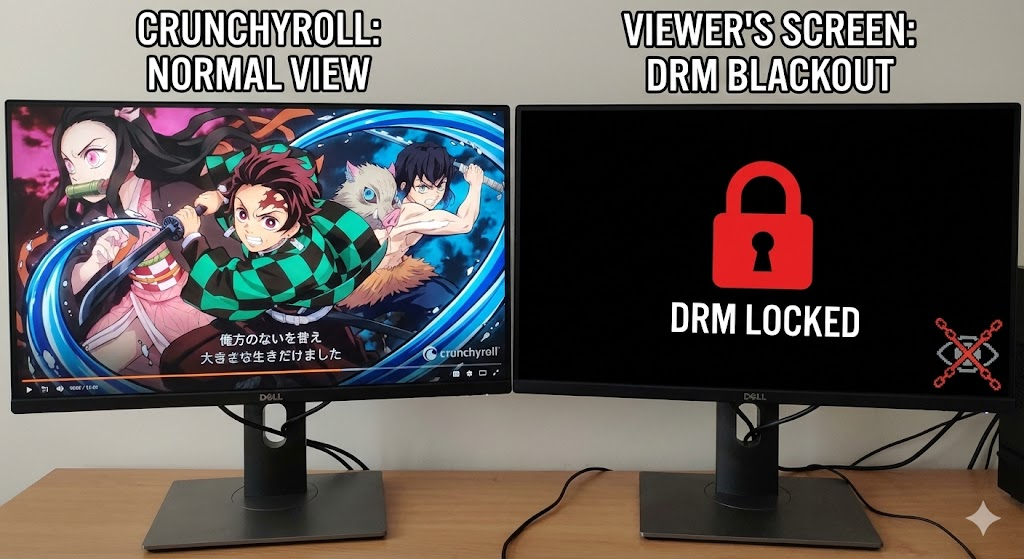
The infamous black screen frustrates countless users. Crunchyroll employs Digital Rights Management (Widevine DRM) to protect copyrighted anime content. When Discord attempts screen capture, DRM detects this activity and interprets it as potential recording, blocking video transmission.
The black screen isn’t a bug. It’s an intentional security feature. Your screen displays anime correctly because you’re authorized, but encrypted video streams won’t allow capture and retransmission through Discord.
Hardware acceleration shifts video processing from CPU to GPU for smoother playback.
The problem? Hardware-accelerated video works with DRM protections, keeping video encrypted longer in the processing pipeline. Discord’s capture mechanism can’t access encrypted streams, causing black screens. Disabling hardware acceleration forces CPU processing where decrypted video becomes accessible to screen capture earlier.
How to Fix the Black Screen Problem?
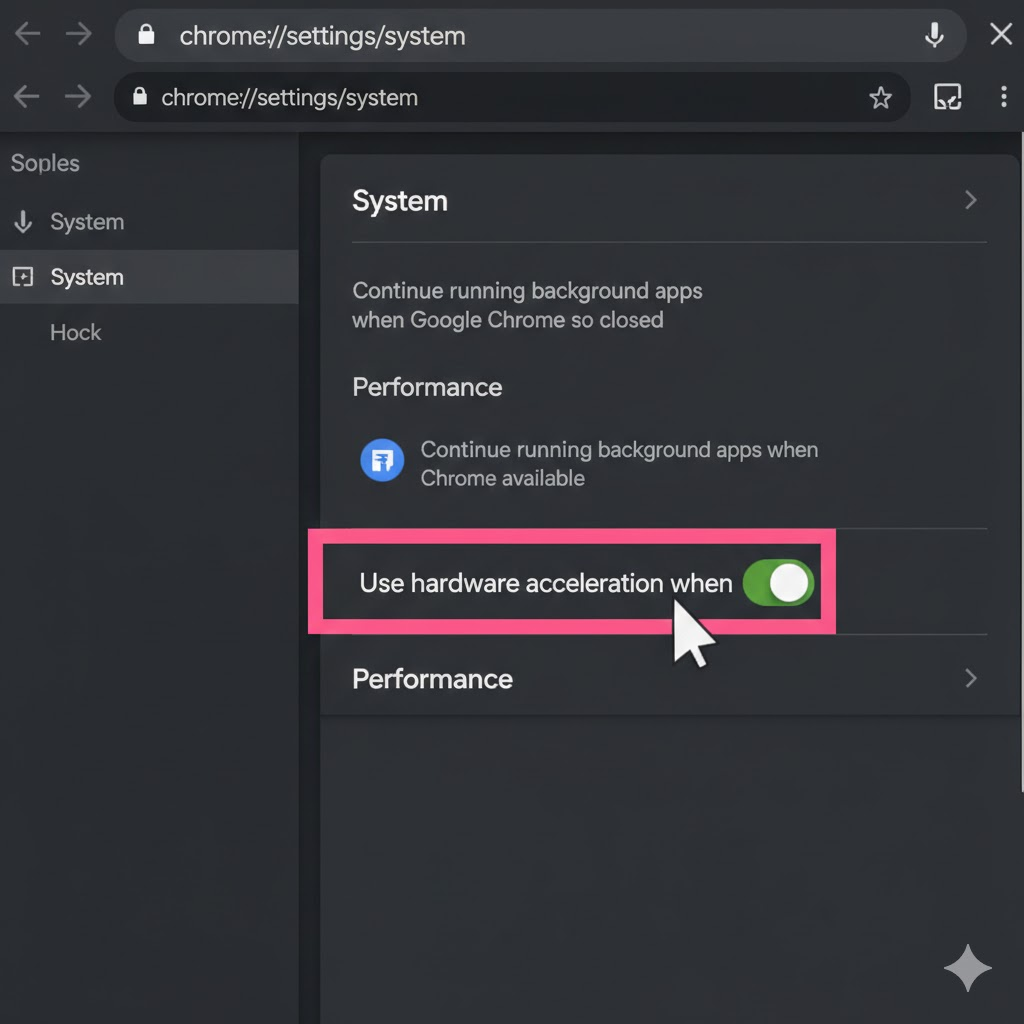
1. Disable Browser Hardware Acceleration:
For Chrome and Edge, click the three-dot menu, navigate to Settings, and search “hardware acceleration.” Under System, toggle off “Use hardware acceleration when available.” Restart your browser completely.
Firefox users click the three-line menu, select Settings, scroll to Performance, uncheck “Use recommended performance settings,” then uncheck “Use hardware acceleration when available.” Restart Firefox.
2. Disable Discord Hardware Acceleration:
In Discord, click User Settings (gear icon), navigate to “Voice & Video,” and turn off Hardware Acceleration. Also disable “OpenH264 Video Codec.” Completely close and relaunch Discord.
3. Share Application Window Instead:
Choose “Applications” and select your browser rather than choosing “Screens.” Application-level sharing often triggers less aggressive DRM responses than full-screen capture.
4. Avoid Fullscreen Mode:
Use Crunchyroll’s theater mode or maximize the browser window instead of true fullscreen. Fullscreen frequently activates stricter DRM protections.
5. Try Different Browsers:
Firefox has the best track record for streaming Crunchyroll without black screens. Chrome and Edge work for many users but prove less consistent. Brave browser occasionally provides better results than mainstream Chromium browsers.
How to Fix Audio Not Working?
Discord doesn’t automatically share audio, it requires explicit activation. When configuring screen share, ensure the “Sound” or “Audio” toggle is ON before clicking “Go Live.” Discord doesn’t allow enabling audio mid-stream.
Check system volume isn’t muted. Verify the Crunchyroll tab isn’t muted in your browser, browsers display speaker icons on tabs playing audio. Right-click muted tabs and select “Unmute tab.”
Use Discord’s desktop app instead of web version. The browser version has limited audio sharing capabilities. Download the desktop application for full audio functionality.
When configuring screen share, select “System Audio” or “Desktop Audio” to capture all sounds from your computer, ensuring viewers hear anime soundtracks and dialogue.
How Can Stream Quality Be Improved?
If viewers report choppy streams, reduce resolution from 720p to 480p. Lower resolution requires less bandwidth, producing more stable streams on marginal connections.
Reduce Crunchyroll’s video quality before streaming.
How to stream Crunchyroll on Discord without compromised quality? Click the gear icon in Crunchyroll’s player and select 720p or 480p. Discord applies compression to whatever it captures, feeding slightly lower resolution sometimes produces better results than struggling to compress 1080p in real time.
Use wired ethernet instead of WiFi. Even fast WiFi experiences interference and packet loss that disrupt streams. Wired connections provide consistent, stable transmission.
Close unnecessary applications and browser tabs to free up CPU and RAM. The more resources available to Discord and your browser, the smoother the stream.
Ask viewers to disable cameras in the voice channel. Each enabled camera consumes upload bandwidth competing with your anime stream.
What Privacy and Security Considerations Apply?
Virtual Private Networks encrypt internet traffic and hide IP addresses. Anyone on Discord voice channels can potentially see your IP through network analysis tools, creating DDoS attack risks. VPNs prevent this by masking your real location.
Some schools, workplaces, and countries restrict Discord access. VPNs bypass restrictions by encrypting traffic and routing it through permitted locations. For Crunchyroll, VPNs help access different regional libraries, though this may violate terms of service.
How to stream Crunchyroll on discord with VPN?
NordVPN leads for Discord users. Over 8,900 servers across 130 countries ensure finding nearby, low-latency options. NordLynx protocol delivers 468 Mbps average speeds with 96% retention, minimal impact on stream quality. Obfuscated servers bypass network restrictions blocking Discord. Threat Protection blocks malicious links common in Discord communities. $3.99/month for long-term plans.
Surfshark offers best value at $1.99/month with unlimited simultaneous connections, perfect for protecting phones, computers, and tablets. The 4,500-server network provides solid coverage. WireGuard delivers 466 Mbps speeds with 94% retention, nearly matching NordVPN at lower cost. CleanWeb blocks malicious ads and trackers.
ExpressVPN prioritizes pure speed, only minimal drops from 249 to 241 Mbps. Automatic obfuscation helps access Discord in restrictive networks. Premium pricing ($6.67/month annually) reflects premium performance for users refusing any degradation.
Private Internet Access appeals to privacy-focused users. NextGen 10 Gbps servers provide ample speed. Split tunneling routes Discord through VPN while keeping other traffic direct. Independently audited no-logs policy and open-source software provide transparency. $2.11/month long-term.
ProtonVPN offers unlimited bandwidth in free tier, unusual among free VPNs. Premium tier ($3.59/month biennial) accesses 17,500 servers across 128 countries, the largest network available. Secure Core routes traffic through privacy-friendly countries. Swiss jurisdiction and multiple audits establish strong privacy credentials.
When choosing VPNs for Discord streaming, prioritize upload/download speeds, server proximity for low latency, verified no-logs policies, and obfuscation features if bypassing blocks.
Legal and Ethical Considerations
Streaming to small friend groups in private Discord servers likely falls under personal use similar to watching together in a living room. However, streaming to large servers, public channels, or stranger communities crosses into questionable territory resembling public performance that violates terms and potentially copyright law.
Keep Discord watch parties small, private, and among genuine friends. Avoid monetizing streams, recording them, or opening to public audiences.
Technically, viewers don’t need Crunchyroll accounts, they watch through screen share. Ethically, when ten friends watch through one account, Crunchyroll loses subscription revenue. The ethical approach ensures regular viewers get their own subscriptions, supporting anime creators, studios, and licensing.
The workarounds described, disabling hardware acceleration and using specific browsers, don’t circumvent DRM encryption. They change how systems process already-authorized content. Recording Discord streams and redistributing them clearly violates copyright law.
Conclusion
How to stream Crunchyroll on Discord? Streaming Crunchyroll on Discord transforms solitary anime viewing into shared experiences strengthening friendships across distances. The key steps: disable hardware acceleration in both browser and Discord, share your browser application window rather than tabs or screens, ensure audio sharing is enabled, and use stable internet connections.
Keep watch parties small and private, support anime creators with legitimate subscriptions, and avoid recording or redistributing streams. With proper setup and awareness of potential issues, Discord becomes a powerful platform for anime watch parties that create shared memories solo viewing can’t match.