
It can be incredibly frustrating when you’re all set to watch your favorite show or a live sports event while Peacock TV decides not to cooperate. Why is Peacock not working as expected?
Many users have reported issues with the streaming service, from endless buffering to the app crashing at the most inconvenient times. This guide will walk you through the common reasons why Peacock might be giving you a hard time and provide a direct fix for each problem.
How to Fix Common Peacock Streaming Problems
Let’s get straight to the solutions.
Why is peacock not working on earth? Here are the most common reasons Peacock isn’t working and exactly how to fix each one.
1. The Peacock App is Glitching or Has Errors
One of the most frequent complaints from Peacock users is that the app itself is the source of the problem. Constant buffering, random crashes, and shows that refuse to load are common symptoms. This can be due to temporary glitches, corrupted cache files, or an outdated app version.
Fix 1: Perform a Full App and Device Restart
Before diving into more complex solutions, a simple reset is often the most effective fix. Follow these official troubleshooting steps:
- Close the Peacock App: Completely close the application. Don’t just minimize it; ensure it’s not running in the background.
- Restart Your Device: Unplug your TV or streaming device from the power source for at least 20 seconds before plugging it back in. For mobile devices or computers, perform a full reboot.
- Clear Cache and Data: In your device’s settings, find the Peacock app and clear its cache and data. This removes temporary files that could be causing the issue.
- Reinstall the App: If the problem persists, uninstall the Peacock app, restart your device one more time, and then reinstall the app from your device’s app store. This ensures you have the latest, uncorrupted version.
2. Your Smart TV Can’t Keep Up
Many users report that Peacock struggles most on smart TVs. The built-in applications on many televisions, especially older models, lack the processing power and memory to run demanding apps like Peacock smoothly. This results in laggy menus, slow loading times, and frequent crashes.
Fix 2: Use a Dedicated Streaming Device
If your smart TV is the bottleneck, the best solution is to bypass its internal software. Using an external, dedicated streaming device can provide a significantly better experience.
Consider investing in one of these popular options:
- Amazon Fire TV Stick
- Roku Streaming Stick
- Apple TV
- NVIDIA Shield TV
These devices are optimized for streaming, receive regular software updates, and have more powerful hardware than most built-in TV app platforms.
Users who switch to a dedicated device often report an immediate and dramatic improvement in Peacock’s performance.
3. Your Internet Connection is Too Slow or Unstable
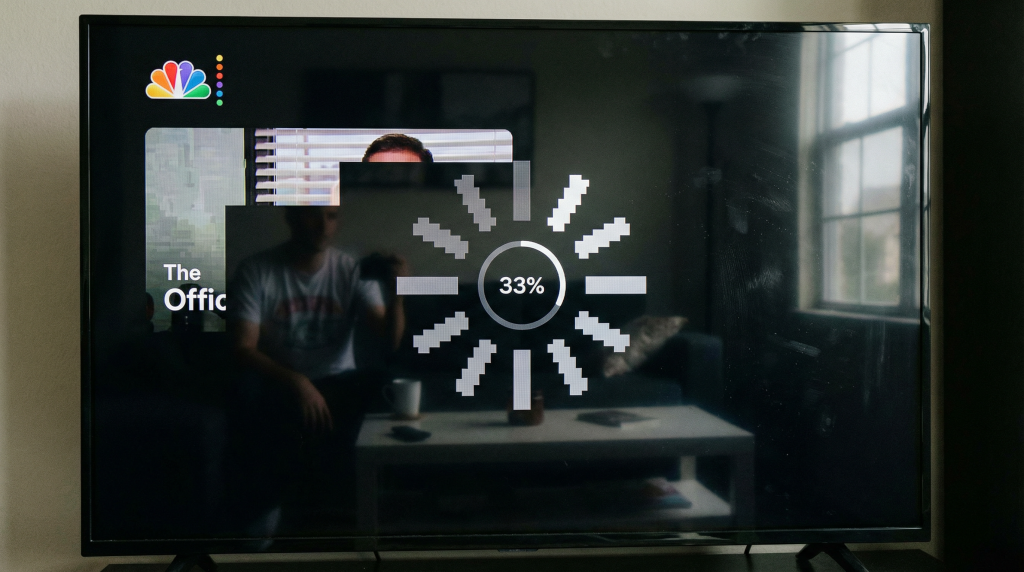
A poor internet connection is a primary cause of buffering and low-quality video. While Peacock’s minimum requirement is 3 Mbps, this is only for standard definition. For a smooth HD or 4K experience, you need much more bandwidth. Network congestion at home or from your ISP can also cause issues.
Fix 3: Optimize Your Internet Speed and Connection
First, verify your internet speed using a reliable speed test website. Compare the result to Peacock’s recommendations:
| Quality | Recommended Speed |
|---|---|
| Standard Definition | 3 Mbps |
| High Definition | 5 Mbps |
| 4K Ultra HD | 25 Mbps |
| Live Events | 8 Mbps |
If your speed is lacking, try these steps:
- Move Closer to Your Router: A stronger Wi-Fi signal can dramatically improve speed.
- Use an Ethernet Cable: A wired connection is always more stable and faster than Wi-Fi.
- Reduce Network Congestion: Disconnect other devices that may be consuming bandwidth (e.g., large downloads, other streaming services).
- Restart Your Router: Unplug your router for 30 seconds and plug it back in to clear any temporary issues.
4. You Are Outside the United States
This is one of the most common reasons why is peacock not working. Peacock is geo-restricted, meaning it is only licensed to broadcast content within the United States and certain U.S. territories. If you try to access the service from any other country, your IP address will be detected, and you will be blocked.
Fix 4: Use a High-Quality VPN
A Virtual Private Network (VPN) is the most effective way to bypass geo-restrictions and fix ‘peacock not working’ issue. A VPN encrypts your internet traffic and routes it through a server in a location of your choice. By connecting to a server in the United States, you can make it appear as though you are browsing from within the country, granting you access to Peacock.
5. Peacock is Detecting and Blocking Your VPN
If you’re already using a VPN but still can’t access Peacock, it’s because the service has identified and blacklisted your VPN’s IP address. Streaming services are actively working to block VPNs, and many free or low-quality providers cannot keep up.
Fix 5: Switch to a VPN Proven to Work with Peacock
The solution is to use a premium VPN service that is known for its ability to unblock streaming platforms. These services constantly update their server networks and use advanced technologies to avoid detection.
Here are the top VPNs that consistently work with Peacock in 2026:
| VPN | US Servers | Key Features | Best For |
|---|---|---|---|
| NordVPN | 2,854+ | NordLynx protocol, RAM-only servers, Threat Protection, 24/7 support | Speed and Reliability |
| Surfshark | 600+ | Unlimited connections, CleanWeb, MultiHop, 24/7 support | Budget and Multiple Devices |
| ExpressVPN | 3,000+ | Audited no-logs policy, 24/7 support, reliable unblocking | Consistent Performance |
NordVPN is our top recommendation, offering over 2,800 servers in the US and blazing-fast speeds perfect for 4K streaming. Its advanced features and proven no-logs policy make it a reliable choice.
Surfshark is a fantastic budget-friendly option that allows unlimited device connections, making it ideal for families. ExpressVPN is another excellent choice known for its consistent performance and reliability in unblocking streaming services.
By choosing one of these providers, you can ensure reliable access to Peacock and other geo-restricted content from anywhere in the world.
6. A Payment or Billing Error (Error PS 41000)
This specific error code indicates a problem with your subscription payment. It could be an expired credit card, incorrect billing information, or an issue with Peacock’s payment processing system. This will prevent you from accessing any premium content.
Fix 6: Check Your Account and Payment Information
- Sign in to your Peacock Account: Go to the Peacock website and sign in to your account.
- Navigate to Your Account Settings: Find the “Account” or “Billing” section.
- Verify Your Payment Method: Check that your credit card information is up-to-date, including the expiration date and CVV.
- Re-enter Your Payment Details: Even if the information looks correct, try re-entering your payment details to ensure there are no hidden typos.
- Contact Peacock Support: If the issue persists, there may be a problem on Peacock’s end. Contact their customer support for assistance with billing issues.
7. You’ve Exceeded the Simultaneous Stream Limit
Peacock, like most streaming services, limits the number of devices that can stream at the same time on a single account. If you see an error message about too many streams, it means other people are using your account at the same time.
Fix 7: Manage Your Devices and Account Access
- Stop Other Streams: Check with family members or other users of your account to see who is currently streaming. Ask them to stop their stream so you can watch.
- Sign Out of All Devices: In your Peacock account settings, you should find an option to “Sign out of all devices.” This will force a log-out on every device using your account.
- Change Your Password: If you suspect someone is using your account without your permission, change your password immediately. This will prevent unauthorized access and free up your streams.
8. The Audio and Video Are Out of Sync or Distorted
Sometimes, you might experience issues where the audio is ahead of or behind the video, or the picture appears stretched or shrunken. This can be caused by a temporary glitch in the stream or an issue with your device’s audio/video settings.
Fix 8: Check Audio Settings and Restart the Stream
- Restart the Stream: The simplest fix is often to go back to the menu and restart the show or movie you were watching. This can often resolve temporary sync issues.
- Check Device Audio Settings: Ensure your TV or streaming device’s audio settings are configured correctly. Try switching between stereo and surround sound options to see if that resolves the issue.
- Check TV Picture Settings: If the picture is distorted, check your TV’s aspect ratio or picture size settings. Make sure it’s set to “Auto” or the appropriate setting for your screen.
9. Playback Controls (Pause, Rewind, Fast-Forward) Don’t Work
Many users have reported that the playback controls in the Peacock app can become unresponsive. You might find that you can’t pause, rewind, or fast-forward, which is especially frustrating during live events.
Fix 9: Use a Different Device or Update the App
- Update the App: This issue is often a bug within the app itself. Ensure your Peacock app is updated to the latest version, as updates frequently include bug fixes for playback controls.
- Try a Different Device: As mentioned earlier, some devices handle the Peacock app better than others. If you’re having trouble on your smart TV, try watching on a laptop, tablet, or a dedicated streaming device to see if the controls work there.
- Restart the App: A quick restart of the app can sometimes restore functionality to the playback controls.
10. Peacock Not Working with a Black Screen (With or Without Audio)
A black screen is another common problem that can occur with or without audio. This usually points to a problem with the video feed itself or a handshake issue between your device and the TV (HDCP error).
Fix 10: Check Your HDMI Connection and Restart
- Restart the App and Device: As always, a full restart of both the Peacock app and your streaming device is the first step.
- Check Your HDMI Cable: If you’re using an external streaming device, try unplugging and replugging the HDMI cable on both ends. If possible, try a different HDMI cable or a different HDMI port on your TV to rule out a faulty cable or port.
- Disable VPN: Sometimes, a VPN can interfere with the video stream, leading to a black screen. Try disabling your VPN temporarily to see if that resolves the issue.