The reasons why is Crunchyroll not working vary from case to case, but most issues stem from five core problems: server outages, poor internet connections, VPN blocks, corrupted app data, or browser conflicts. Understanding which problem you’re facing is the first step toward getting back to your anime.
Last month, over 36,000 users simultaneously reported connection issues during a major Crunchyroll outage. Whether you’re dealing with endless buffering, cryptic error codes, or videos that refuse to load, these disruptions have become frustratingly common for anime fans worldwide. Most Crunchyroll problems have straightforward solutions once you identify the root cause.
Also Read: How to Stream Crunchyroll on Discord?
Is Crunchyroll Down or Is It Just You?
Before troubleshooting your device or internet connection, determine whether Crunchyroll’s servers are actually functioning. This simple check saves hours of unnecessary effort.
Visit Crunchyroll’s official status page at status.crunchyroll.com to see real-time service health reports. Check Downdetector.com simultaneously. When thousands of users report identical problems within minutes, the issue definitely lies with Crunchyroll’s infrastructure, not your setup.
Try accessing Crunchyroll from a completely different device or network. If your smartphone works fine on cellular data while your computer struggles, the problem involves your home internet or computer settings. If all devices fail regardless of network, Crunchyroll’s servers are likely experiencing difficulties.
How to Fix Crunchyroll Not Working?
Once you’ve confirmed the servers are working, the issue lies with your local setup, and that’s where you can actually make a difference.
Why Your Internet Connection Matters Most
Internet problems cause over 60% of Crunchyroll streaming failures, yet users often overlook this fundamental factor while searching for complex solutions.
Run a speed test at Speedtest.net right now. Crunchyroll needs consistent speeds above 5 Mbps minimum, with 25 Mbps recommended for HD streaming. If your results show speeds below these thresholds or high variability between tests, internet issues are definitely causing your problems.
Wi-Fi signal strength impacts streaming more than most people realize. Your device might show full signal bars while still experiencing packet loss or latency spikes that disrupt video playback. Move closer to your router or switch to a wired Ethernet connection. This single change resolves buffering for many users.
Network congestion during peak evening hours affects busy households significantly. When multiple family members stream videos, download files, or play online games simultaneously, available bandwidth gets divided among all activities. Crunchyroll might work perfectly at 3 AM but constantly buffer at 8 PM simply due to competing traffic.
If your internet checks out, the next culprit is usually your device or app configuration.
How Corrupted Cache and Cookies Break Everything
Outdated or corrupted temporary files represent the most common device-specific problem affecting Crunchyroll performance.
Browsers store cache and cookies to speed up website loading, but these files sometimes become damaged. When Crunchyroll tries using corrupted cache data, videos fail to load or error codes appear. Clear your browser cache and cookies completely, then sign back into Crunchyroll fresh.
On desktop browsers, press Ctrl+Shift+Delete (Windows) or Command+Shift+Delete (Mac) to open clearing options. Select “All time” as the time range and check boxes for cache and cookies. On mobile apps, navigate to your device settings, find Crunchyroll under Apps, select Storage, then tap “Clear Cache.”
After clearing cache, restart your browser or app completely before trying Crunchyroll again. This refresh often immediately resolves loading failures and playback errors.
Cache clearing helps, but sometimes the problem runs deeper into your browser or app version.
When Outdated Apps and Browsers Cause Failures
Running old software versions creates compatibility issues as Crunchyroll continuously updates its streaming technology.
Check your Crunchyroll app version by visiting your device’s app store and searching for Crunchyroll. If an “Update” button appears, tap it immediately. Outdated apps lack critical bug fixes and security updates needed for current Crunchyroll features.
Browser users face similar problems. Chrome, Firefox, Edge, and Safari all release frequent updates that improve streaming compatibility. Click your browser’s menu icon, select “Help” or “About,” then check for updates. Install any available updates and restart your browser completely.
Chrome and modern Edge provide the most reliable Crunchyroll experience. Firefox users report more frequent issues, particularly error code SHAK-7000. If problems persist on your current browser, try a different one to isolate whether browser-specific bugs are causing failures.
Browser and app updates help, but privacy tools you’ve installed might be blocking Crunchyroll from working properly.
Why Your Privacy Extensions Break Streaming
Ad-blockers, privacy extensions, and security software frequently conflict with streaming platforms’ technical requirements.
Ad-blocking extensions like uBlock Origin or AdBlock Plus don’t just remove advertisements. They can prevent Crunchyroll’s video player from loading entirely. These tools sometimes block essential scripts needed for video playback, DRM verification, or user authentication.
Temporarily disable all browser extensions, then try Crunchyroll again. If videos suddenly work, re-enable extensions one by one to identify the culprit. Privacy-focused browser settings also interfere. Firefox’s Enhanced Tracking Protection and Safari’s Intelligent Tracking Prevention block third-party cookies and scripts that Crunchyroll requires.
Try using Incognito or Private browsing mode. If Crunchyroll works there, your extensions or privacy settings are definitely the problem.
Even with extensions disabled, VPN usage creates a unique set of challenges with Crunchyroll.
The VPN Paradox: Access vs. Detection
VPNs with Crunchyroll create complicated situations. They can potentially unlock region-restricted content but face aggressive blocking from the platform.
Crunchyroll actively detects and blocks VPN connections because licensing agreements require geographic restrictions. The platform identifies VPNs through multiple methods. When numerous users connect from identical IP addresses (a telltale VPN sign), Crunchyroll flags and blocks that address immediately.
Premium VPN services designed for streaming offer the best success rates. Providers like ExpressVPN, NordVPN, and Surfshark constantly rotate servers and acquire new IP addresses, creating temporary windows where connections work. Free VPNs get blocked almost instantly because they operate limited servers that are easy to identify.
If you’re using a VPN and Crunchyroll suddenly stopped working, try these quick fixes: disconnect and reconnect to get a new IP address, switch to a different server location (avoid popular servers like “US #1”), or try servers in smaller cities rather than major metropolitan areas. If problems persist, temporarily disable your VPN to confirm it’s the cause.
VPN issues aside, specific error codes provide direct clues about what’s failing.
Decoding Crunchyroll’s Error Messages
Crunchyroll displays specific error codes that point toward different underlying problems, though interpreting them isn’t always intuitive.
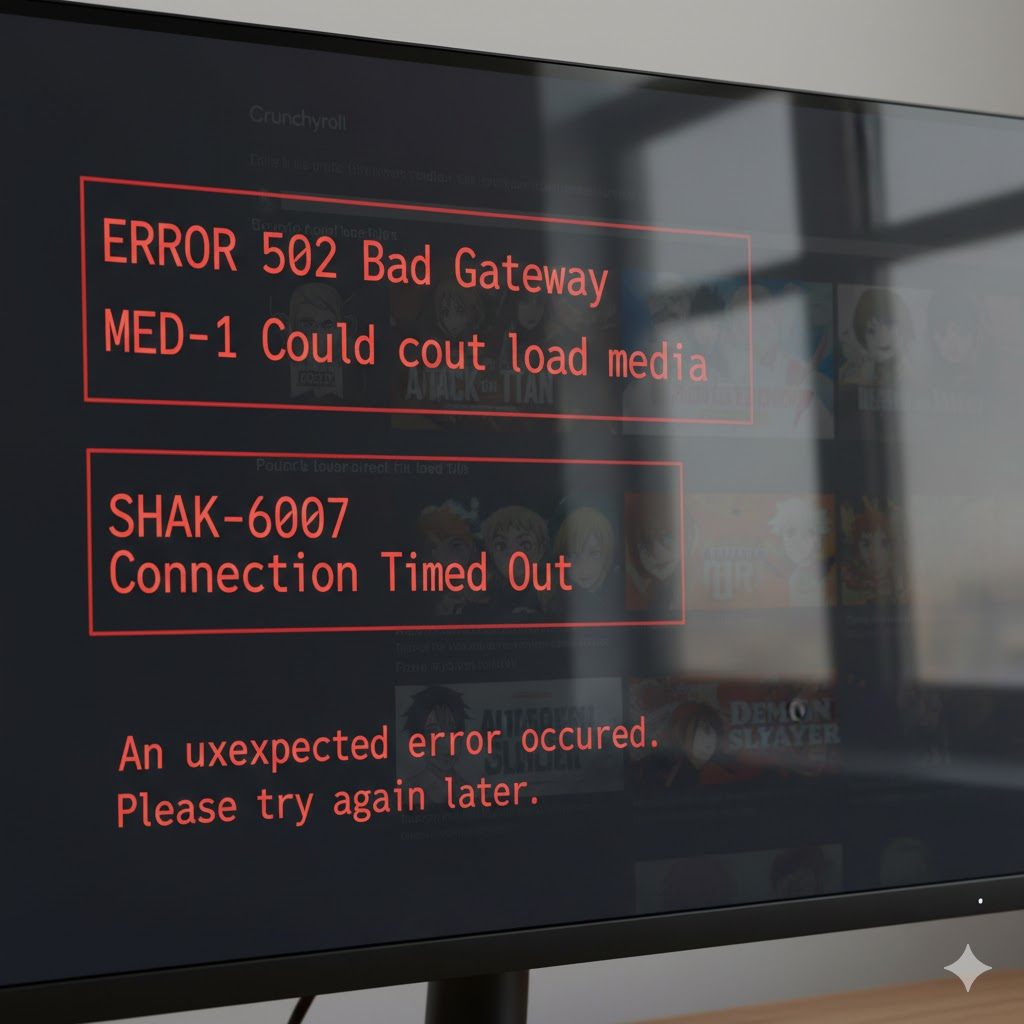
MED-1 errors indicate video playback failures, usually caused by DRM (Digital Rights Management) issues, corrupted cache, VPN interference, or ad-blocker conflicts. Fix by clearing cache, disabling extensions, and ensuring you’re not using a VPN.
SHAK error codes cover broader issues. SHAK-6007 appears when accessing account information like passwords or payment details. Try logging out and back in. SHAK-7000 occurs frequently in Firefox and Edge, relating to cache corruption or extension conflicts. Clear cache and disable extensions. SHAK-3016 signals network connectivity problems. Check your internet connection.
Server error codes (502, 503, 504, 1005) point directly to Crunchyroll infrastructure problems. These mean the platform’s servers are overloaded, undergoing maintenance, or experiencing technical difficulties. No troubleshooting on your end will help. Just wait for Crunchyroll to resolve the issue.
Error 1020 specifically affects Xbox users who didn’t properly close the app before shutting down. Always close Crunchyroll completely before turning off your console to prevent this session conflict.
Understanding error codes helps, but device-specific quirks add another layer of complexity.
Platform-Specific Problems and Solutions
Different devices experience unique Crunchyroll issues based on their operating systems and hardware.
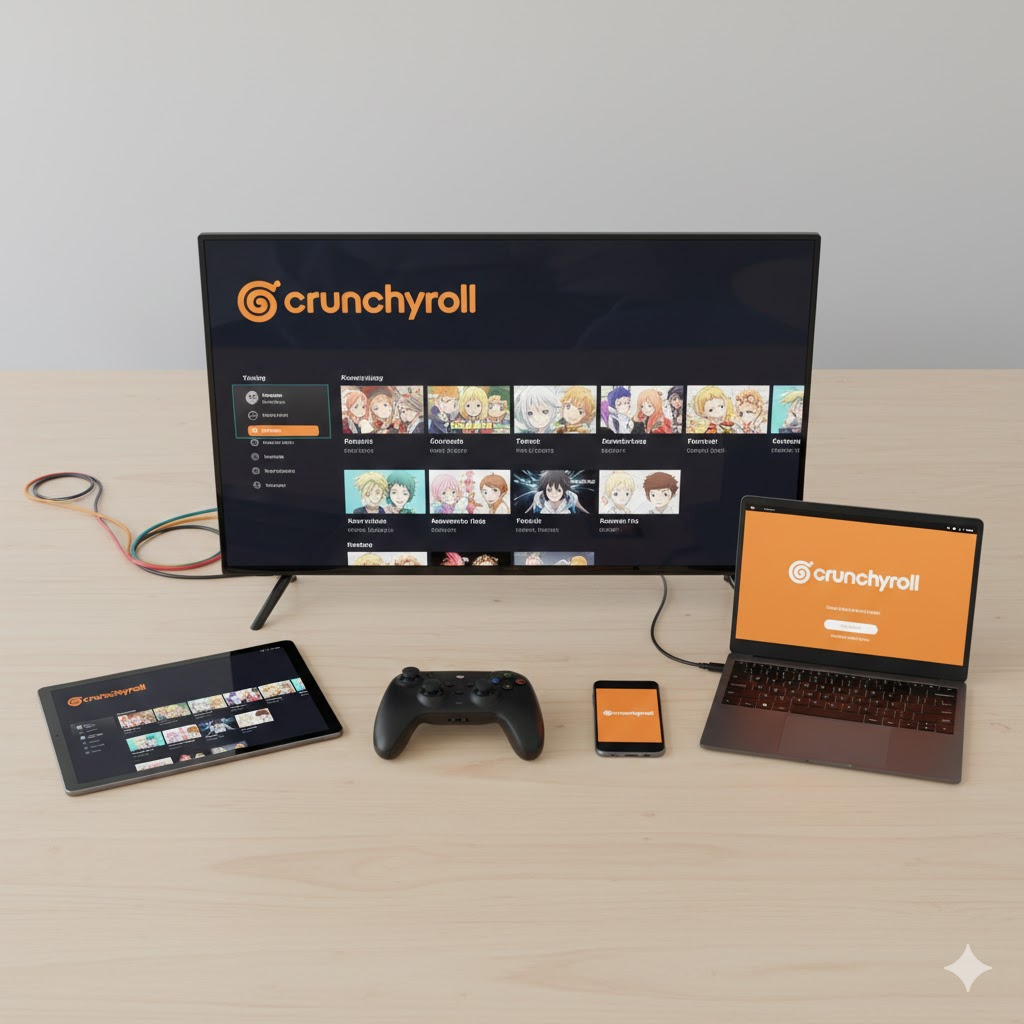
Smart TVs frequently suffer from outdated app versions. TV manufacturers don’t prioritize streaming app updates as aggressively as smartphone companies. Navigate to your TV’s app store, search for Crunchyroll, and install any available updates. If problems persist, uninstall and reinstall the app completely.
Gaming consoles (PlayStation, Xbox) have their own quirks. Always close apps properly before shutting down. Power cycle your console by completely turning it off, unplugging for 30 seconds, then restarting. Clear the console’s cache if your system offers that option. This won’t delete saved games.
Mobile devices (smartphones, tablets) benefit from similar fixes. Force-close the Crunchyroll app completely, clear app cache through device settings, ensure the app is updated, and restart your device. If issues continue, uninstall and reinstall the app fresh.
Streaming devices (Roku, Fire TV Stick, Apple TV) should be restarted regularly and kept updated. Unplug the device for 30 seconds, plug back in, wait for full startup, then try Crunchyroll again.
Moving beyond device issues, advanced troubleshooting techniques can resolve persistent problems.
Advanced Fixes When Nothing Else Works
When basic troubleshooting fails, these advanced techniques often succeed where simpler methods don’t.
Change your DNS servers to bypass potential DNS-related slowdowns. Configure your device or router to use Google DNS (8.8.8.8 and 8.8.4.4) or Cloudflare DNS (1.1.1.1 and 1.0.0.1). This routes your web requests through different, often faster servers than your ISP provides.
Perform a complete network reset on your device. This restores all internet configurations to default settings. On Windows, open Settings > Network & Internet > Advanced network settings > Network reset. On mobile devices, find Reset Network Settings under system settings. You’ll need to reconnect to Wi-Fi afterward, but this resolves many mysterious connectivity issues.
Test with a mobile hotspot to definitively identify whether your home network causes problems. Connect your device to your phone’s cellular data instead of Wi-Fi. If Crunchyroll works perfectly on the hotspot, the issue lies within your home network setup. Contact your ISP or upgrade your router.
Complete app reinstallation clears deeper corrupted data that cache clearing misses. Uninstall Crunchyroll entirely, restart your device, then reinstall from your app store. This nuclear option resets everything to factory settings.
With these solutions in hand, prevention becomes the final piece of the puzzle.
Prevent Future Crunchyroll Problems
Proactive maintenance reduces how often you encounter streaming issues in the first place.
Enable automatic app updates so Crunchyroll always runs the latest bug-fixed version. Schedule monthly browser cache clearings to prevent corrupted data buildup. Restart your router weekly by unplugging for 30 seconds. This simple habit maintains network stability and prevents many connectivity issues.
Check your subscription status regularly to ensure payment information stays current. Account problems often disguise themselves as streaming errors rather than obvious billing notifications. Keep browsers updated and periodically test Crunchyroll in incognito mode to catch extension conflicts early.
When self-troubleshooting reaches its limits, Crunchyroll’s support team can identify account-specific problems, regional restrictions, or server-side issues affecting your area. Visit help.crunchyroll.com to submit a request or chat with support agents available 24/7.
Most Crunchyroll problems resolve quickly once you identify the actual cause. Server outages require patience, but internet issues, cache corruption, extension conflicts, and VPN blocks all have reliable fixes. Keep your apps updated, maintain your network properly, and you’ll spend less time troubleshooting and more time enjoying anime.